> ## Documentation Index
> Fetch the complete documentation index at: https://aibco.mintlify.site/llms.txt
> Use this file to discover all available pages before exploring further.
# Chat: Train Your AI on Your Business Knowledge
> Build your Render + Chat knowledge base with text, up to 10 URL scans, and documents, plus guardrails, greeting, message limit, and chat behaviors.
When your widget runs in Render + Chat mode, visitors can ask the AI about your products, services, or business while they visualize designs on their property. The Chat section of your dashboard is where you train that AI so it answers accurately and on-brand.
You can set up chat knowledge at any time, even while your widget is in Render Only mode. It will not go live until you switch modes.
## What Render + Chat mode does
The widget shows a chat panel first and can launch the visualizer inline. Visitors ask about cost, materials, sizing, or availability, and the AI draws from the knowledge you provide.
## The six Chat tabs
The Chat page ([aibco.ai/dashboard/chat](https://aibco.ai/dashboard/chat)) has six tabs:
| Tab | What you add |
| -------------- | ----------------------------------------------------------------------------------------------------------------------------------------------------------------------------------------- |
| **Text** | Free-form text about your business, services, pricing, and FAQs. |
| **Website** | Up to **10 public page URLs** to scan. **10 credits flat** per scan, however many pages you give it10 public page URLs to scan. 10 credits flat per scan, however many pages you give it. |
| **Document** | PDF, .txt, or .md files (max 10 MB each, up to 5 files). PDFs cost 1 credit; text and markdown are free. |
| **Guardrails** | Custom instructions that shape how the AI responds to visitors. |
| **Greeting** | The opening message (up to 125 characters) and up to 4 suggested question chips (up to 60 characters each). |
| **Chat** | Visitor chat behavior, including the message limit per session (7 to 25). |
## Knowledge capacity
The **Knowledge capacity** bar at the top of the Chat page shows how much of your **30,000-30,000-character** knowledge limit you have used, split into three color-coded segments:
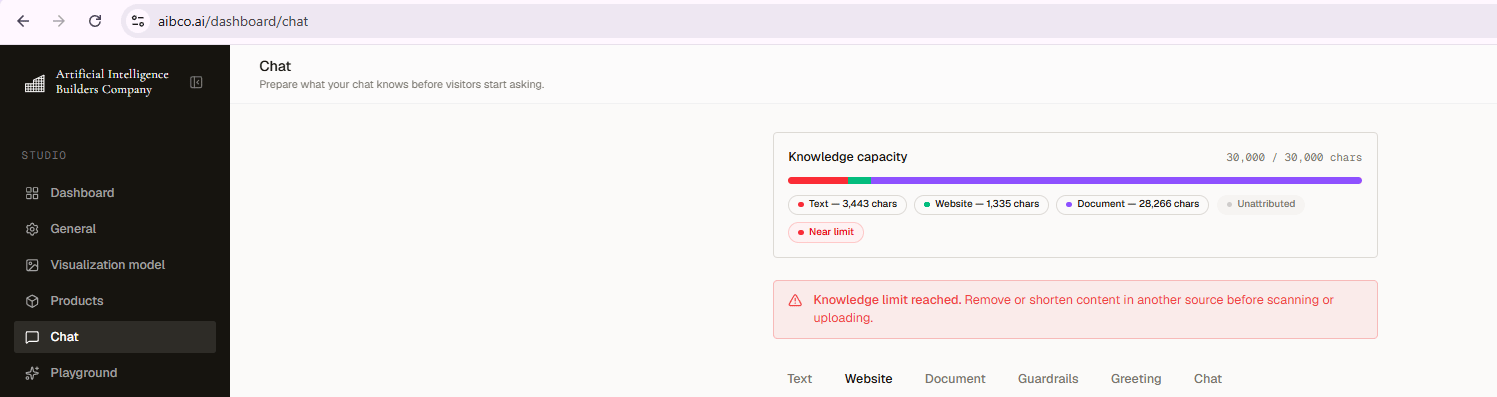 | Color | Source |
| --------- | -------------------------- |
| 🔵 Blue | Text (manually written) |
| 🟢 Green | Website (scanned pages) |
| 🟣 Violet | Documents (uploaded files) |
The bar turns **amber** at 70% and **red** at 90%.
Website scanning and document uploads are disabled once capacity reaches 90%. Delete or trim an existing source to make room. Manual text editing is allowed up to the absolute limit.
## What a conversation looks like for visitorWhat a conversation looks like for visitors
Three behaviors are worth knowing about, because they are what turns a chat into a lead.
Three behaviors are worth knowing about, because they are what turns a chat into a lead.
**Product cards appear inline.** When a reply names specific products from your catalog, they show up as cards right under that message with image, name, and short description. Each card has a **See it on my place** button that opens the visualizer with that product already selected, and a **See all products** link opens the full catalog. This is the shortest path from a question to a render.**Product cards appear inline.** When a reply names specific products from your catalog, they show up as cards right under that message with image, name, and short description. Each card has a **See it on my place** button that opens the visualizer with that product already selected, and a **See all products** link below the row opens the full catalog. This is the shortest path from a question to a render.
**The contact form waits at the end.** When a visitor reaches the message limit, the composer is disabled and reads *Chat limit reached, contact us below*, and the contact form moves to the end of the transcript. They can still leave Name (optional), Email, Phone, and Message (optional), so hitting the cap ends the conversation, not the lead.
**Replies are formatted.** The assistant writes in Markdown and the chat renders bold, italics, paragraphs, and bulleted or numbered lists. Nothing else (no images, links, or headings), so answers stay readable in a narrow panel.
## Next steps
* [Add knowledge sources](/chat/knowledge)
* [Set response guardrails](/chat/guardrails)
* [Configure the greeting message](/chat/greeting)
* [Set a message limit](/chat/message-limit)
**The contact form waits at the end.** When a visitor reaches the message limit, the composer is disabled and reads *"Chat limit reached — contact us below"*, and the contact form moves to the end of the transcript, right where the conversation stopped. Visitors can still leave Name (optional), Email, Phone, and Message (optional), so hitting the cap ends the conversation, not the lead.
**Replies are formatted.** The assistant writes in Markdown and the chat renders it: bold, italics, paragraphs, and bulleted or numbered lists. Nothing else (no images, links, or headings), so answers stay readable in a narrow panel.
## Next steps
Write text, scan pages, or upload documents.
Layer custom instructions on top of AIBCO's rules.
Set the opening message and suggested chips.
Cap visitor messages per session (7 to 25).
| Color | Source |
| --------- | -------------------------- |
| 🔵 Blue | Text (manually written) |
| 🟢 Green | Website (scanned pages) |
| 🟣 Violet | Documents (uploaded files) |
The bar turns **amber** at 70% and **red** at 90%.
Website scanning and document uploads are disabled once capacity reaches 90%. Delete or trim an existing source to make room. Manual text editing is allowed up to the absolute limit.
## What a conversation looks like for visitorWhat a conversation looks like for visitors
Three behaviors are worth knowing about, because they are what turns a chat into a lead.
Three behaviors are worth knowing about, because they are what turns a chat into a lead.
**Product cards appear inline.** When a reply names specific products from your catalog, they show up as cards right under that message with image, name, and short description. Each card has a **See it on my place** button that opens the visualizer with that product already selected, and a **See all products** link opens the full catalog. This is the shortest path from a question to a render.**Product cards appear inline.** When a reply names specific products from your catalog, they show up as cards right under that message with image, name, and short description. Each card has a **See it on my place** button that opens the visualizer with that product already selected, and a **See all products** link below the row opens the full catalog. This is the shortest path from a question to a render.
**The contact form waits at the end.** When a visitor reaches the message limit, the composer is disabled and reads *Chat limit reached, contact us below*, and the contact form moves to the end of the transcript. They can still leave Name (optional), Email, Phone, and Message (optional), so hitting the cap ends the conversation, not the lead.
**Replies are formatted.** The assistant writes in Markdown and the chat renders bold, italics, paragraphs, and bulleted or numbered lists. Nothing else (no images, links, or headings), so answers stay readable in a narrow panel.
## Next steps
* [Add knowledge sources](/chat/knowledge)
* [Set response guardrails](/chat/guardrails)
* [Configure the greeting message](/chat/greeting)
* [Set a message limit](/chat/message-limit)
**The contact form waits at the end.** When a visitor reaches the message limit, the composer is disabled and reads *"Chat limit reached — contact us below"*, and the contact form moves to the end of the transcript, right where the conversation stopped. Visitors can still leave Name (optional), Email, Phone, and Message (optional), so hitting the cap ends the conversation, not the lead.
**Replies are formatted.** The assistant writes in Markdown and the chat renders it: bold, italics, paragraphs, and bulleted or numbered lists. Nothing else (no images, links, or headings), so answers stay readable in a narrow panel.
## Next steps
Write text, scan pages, or upload documents.
Layer custom instructions on top of AIBCO's rules.
Set the opening message and suggested chips.
Cap visitor messages per session (7 to 25).