> ## Documentation Index
> Fetch the complete documentation index at: https://aibco.mintlify.site/llms.txt
> Use this file to discover all available pages before exploring further.
# Products: Your Design Catalog for the Widget
> Build and manage your AIBCO product catalog. Learn about statuses, visualization types, sample products, plan limits, and widget visibility.
Your products are the designs visitors can visualize on their property through the AIBCO widget. The widget will not show until you have at least one product with an image.
## Product statuses
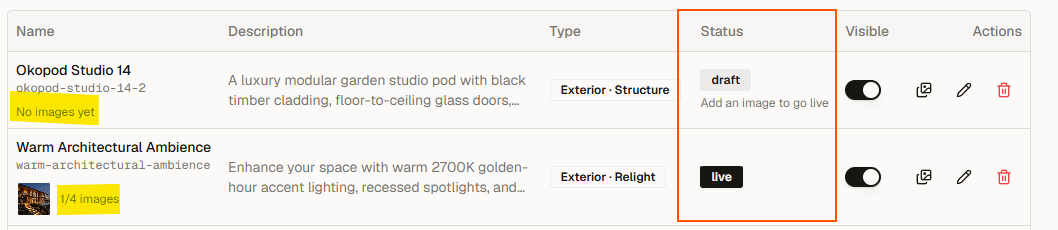
Every product is either **Draft** or **Live**:
| Status | What it means |
| --------- | ------------------------------------------------------------------------------ |
| **Draft** | The product exists but has no images yet. It does not appear in the widget. |
| **Live** | The product has at least one image and is available for visitors to visualize. |
Use the **Visible** toggle on each product row to show or hide a Live product in the widget without deleting it.
 ## Create a product
In the left sidebar, click **Products**. [**aibco.ai/dashboard/products**](https://aibco.ai/dashboard/products)
Click **New product** (top right).
* **Product name**: what visitors will see (for example, *Studio 14*).
* **Visualization type**: see the table below. Each card carries persona chips so you can spot the one that matches your business.
* **Space**: **Exterior** or **Interior**, shown for the types that offer a choice. A short hint under the toggle explains what each means for that type.
* **Require photo**: when on, visitors must upload a photo of their space; address-only is not offered. **Interior is locked ON** because there is no way to visualize a room we have not seen.
* **Short description**: up to 250 characters. Shown to visitors and used by the visualizer.
* **Internal description**: optional, up to 250 characters. Extra detail for the visualizer, never shown publicly.
## Create a product
In the left sidebar, click **Products**. [**aibco.ai/dashboard/products**](https://aibco.ai/dashboard/products)
Click **New product** (top right).
* **Product name**: what visitors will see (for example, *Studio 14*).
* **Visualization type**: see the table below. Each card carries persona chips so you can spot the one that matches your business.
* **Space**: **Exterior** or **Interior**, shown for the types that offer a choice. A short hint under the toggle explains what each means for that type.
* **Require photo**: when on, visitors must upload a photo of their space; address-only is not offered. **Interior is locked ON** because there is no way to visualize a room we have not seen.
* **Short description**: up to 250 characters. Shown to visitors and used by the visualizer.
* **Internal description**: optional, up to 250 characters. Extra detail for the visualizer, never shown publicly.
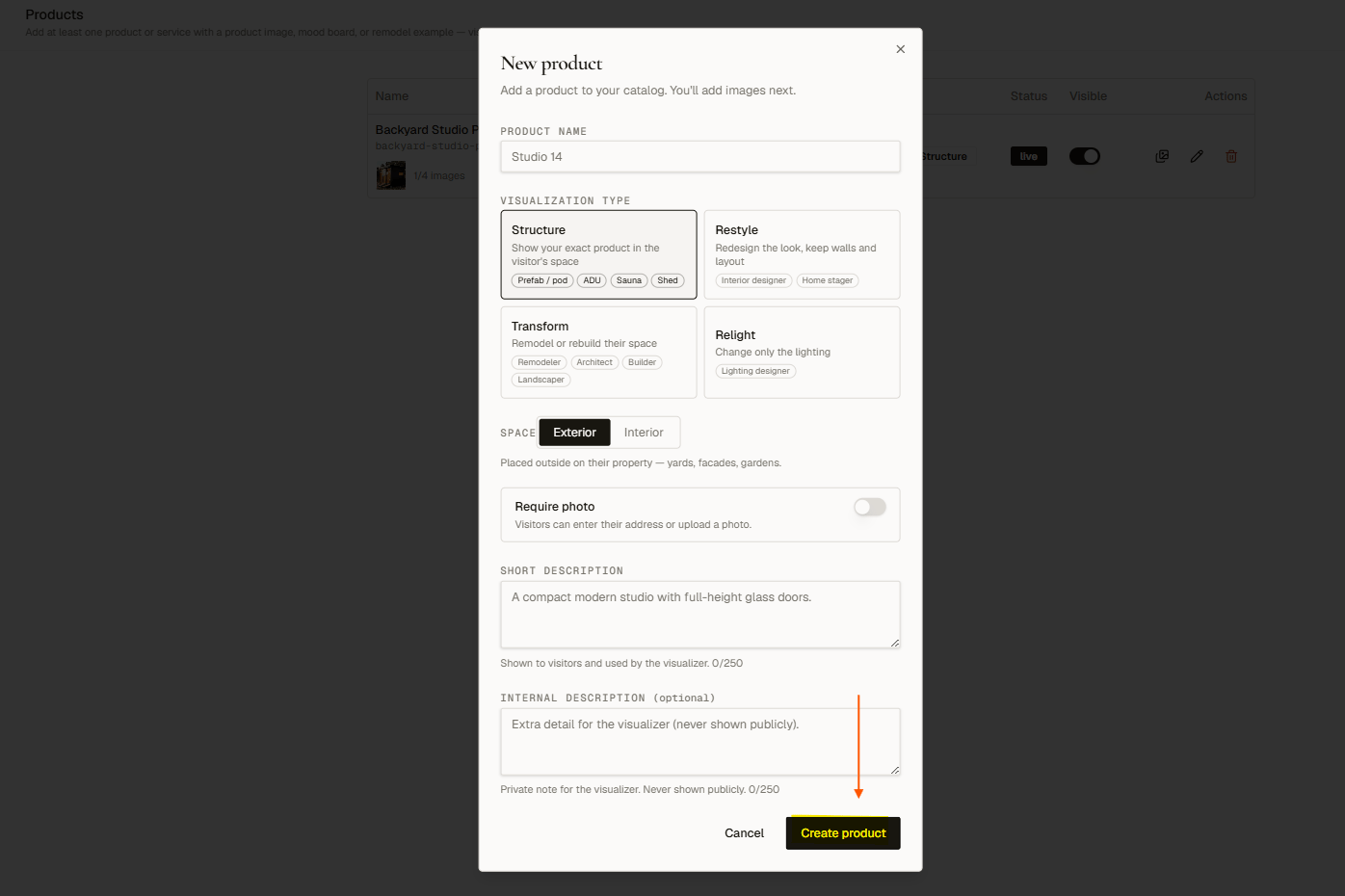 Click **Save**. The product is created in Draft status until you add images.
### Visualization types
| Type | What it does | Typical businesses | Space choice |
| ------------- | ----------------------------------------------- | ----------------------------------------- | -------------------- |
| **Structure** | Shows your exact product in the visitor's space | Prefab / pod, ADU, sauna, shed | Exterior or Interior |
| **Restyle** | Redesigns the look, keeps walls and layout | Interior designer, home stager | Interior only |
| **Transform** | Remodels or rebuilds their space | Remodeler, architect, builder, landscaper | Exterior or Interior |
| **Relight** | Changes only the lighting | Lighting designer | Exterior or Interior |
Click **Save**. The product is created in Draft status until you add images.
### Visualization types
| Type | What it does | Typical businesses | Space choice |
| ------------- | ----------------------------------------------- | ----------------------------------------- | -------------------- |
| **Structure** | Shows your exact product in the visitor's space | Prefab / pod, ADU, sauna, shed | Exterior or Interior |
| **Restyle** | Redesigns the look, keeps walls and layout | Interior designer, home stager | Interior only |
| **Transform** | Remodels or rebuilds their space | Remodeler, architect, builder, landscaper | Exterior or Interior |
| **Relight** | Changes only the lighting | Lighting designer | Exterior or Interior |
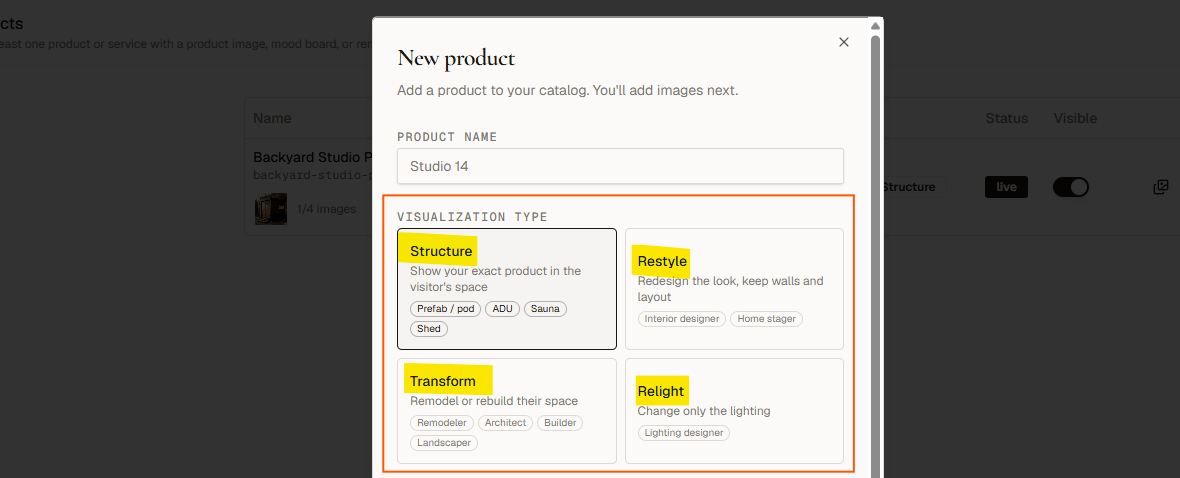 **Restyle** is always interior. **Structure**, **Transform**, and **Relight** let you choose Exterior or Interior. Interior always requires a photo.
> **Changing the type of a live product** changes what visitors see (the flow and the photo requirement). The form warns you when you do. Renders already generated are unaffected.
## Start from a sample
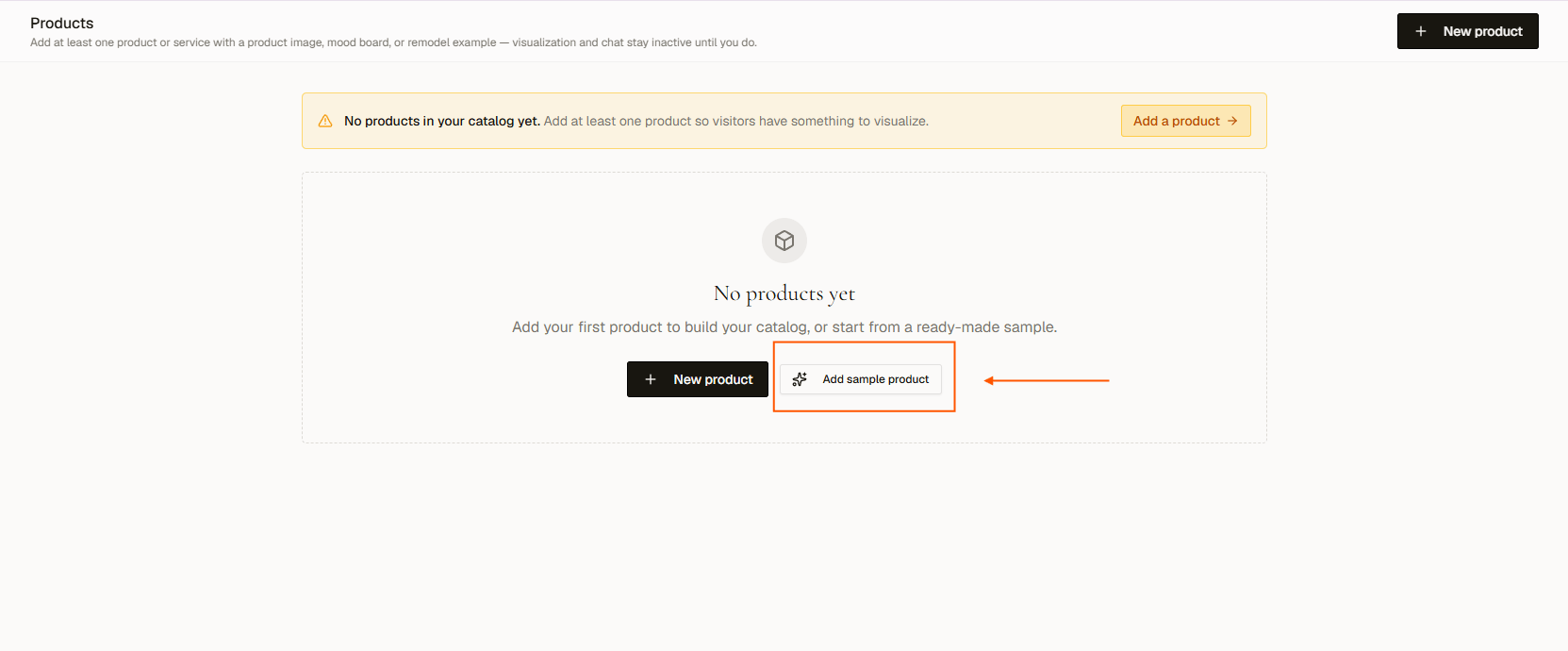
On an empty Products page, click **Add sample product** to open **Start from a sample**, a picker with six ready-made products, one per vertical:
**Restyle** is always interior. **Structure**, **Transform**, and **Relight** let you choose Exterior or Interior. Interior always requires a photo.
> **Changing the type of a live product** changes what visitors see (the flow and the photo requirement). The form warns you when you do. Renders already generated are unaffected.
## Start from a sample
On an empty Products page, click **Add sample product** to open **Start from a sample**, a picker with six ready-made products, one per vertical:
 * Prefab & ADUs
* Interior design
* Hospitality design
* Lighting design
* Landscape & outdoor living
* Architecture & custom homes
Pick the one closest to your business and you get a complete, live example you can edit or delete later.
## How many products you can have
Your plan sets the cap:
| Plan | Products |
| ------- | -------- |
| Free | 7 |
| Starter | 10 |
| Builder | 25 |
| Scale | 100 |
| Pro | 200 |
When you hit the cap, creating a product prompts you to upgrade.
## Visibility in the widget
A product must be both **Live** (has at least one image) and **Visible** (toggle on) to appear in the widget. A Live product with its **Visible** toggle switched off does not count toward widget readiness.
The widget checks readiness automatically. For **Render only** mode, you need at least one Live and Visible product plus an authorized domain or a published hosted page. For **Render + Chat**, you also need at least 100 characters of knowledge saved.
## Next steps
Upload photos to bring your products from Draft to Live.
Edit, hide, or delete products after they are created.
Upgrade your plan to raise your product cap.
* Prefab & ADUs
* Interior design
* Hospitality design
* Lighting design
* Landscape & outdoor living
* Architecture & custom homes
Pick the one closest to your business and you get a complete, live example you can edit or delete later.
## How many products you can have
Your plan sets the cap:
| Plan | Products |
| ------- | -------- |
| Free | 7 |
| Starter | 10 |
| Builder | 25 |
| Scale | 100 |
| Pro | 200 |
When you hit the cap, creating a product prompts you to upgrade.
## Visibility in the widget
A product must be both **Live** (has at least one image) and **Visible** (toggle on) to appear in the widget. A Live product with its **Visible** toggle switched off does not count toward widget readiness.
The widget checks readiness automatically. For **Render only** mode, you need at least one Live and Visible product plus an authorized domain or a published hosted page. For **Render + Chat**, you also need at least 100 characters of knowledge saved.
## Next steps
Upload photos to bring your products from Draft to Live.
Edit, hide, or delete products after they are created.
Upgrade your plan to raise your product cap.